How to Fix Delayed Notifications on Facebook Marketplace with Lotify
Facebook Marketplace can feel frustrating when you are trying to catch the best deals before everyone else. You set up alerts, enable notifications, save searches, and still somehow miss the matching listing you wanted. By the time Facebook finally pushes the notification, the item is already sold.
This is one of the biggest issues for buyers who monitor new marketplace listings daily. Whether you are searching for a used iPhone, rare collectibles, furniture, sneakers, gaming consoles, or cars, speed matters. In competitive categories, listings disappear within minutes.
The problem is that Facebook Marketplace notifications are inconsistent. Even with proper notification settings enabled, alerts can arrive late, fail completely, or stop working randomly after app updates.
In this guide, we will cover:
- Why Facebook Marketplace alerts fail
- How to fix delayed or missing search alerts
- Common notification issues on iPhone and Android
- Why traditional Facebook alerts are still unreliable
- A smarter alternative with Lotify smart alerts
Why Facebook Marketplace Notifications Often Fail
Most users assume the issue comes from Facebook itself. Sometimes that is true, but in many cases multiple systems affect notification delivery.
Facebook Marketplace relies on several layers working correctly at the same time:
- Facebook app notification settings
- Operating system permissions
- Background app refresh
- Battery optimization settings
- Internet connection stability
- Facebook server performance
- Saved search configuration
If even one layer breaks, Marketplace alerts may stop working.
Another major problem is delay. Facebook often sends notifications several minutes after a matching listing appears. In fast-moving categories, this makes alerts almost useless.
Why Am I Not Getting Notifications From FB Marketplace?
This is one of the most common questions among Marketplace users. If you are not receiving alerts, there are usually several possible causes.
1. Marketplace Notification Settings Are Disabled
Facebook may silently disable Marketplace alerts after updates or account changes.
To check your notification settings:
- Open the “Facebook” application
- Tap “Menu”
- Go to “Settings & Privacy”
- Open “Notifications”
- Select “Marketplace”
- Toggle all alerts ON
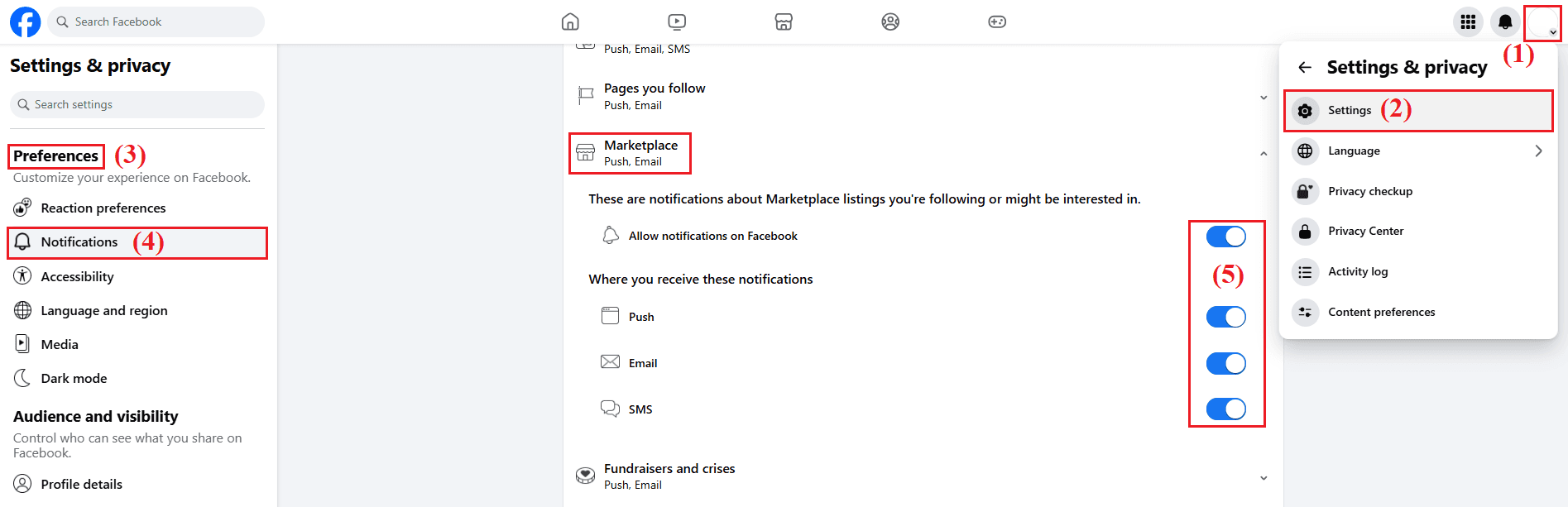
Make sure these Marketplace notification settings are enabled so Facebook can send you alerts. When these notification settings are properly configured, you can receive alerts about matching listings much faster and improve your chances of catching the best deals before other buyers.
2. Your Phone Is Blocking Notifications
Even if Facebook notifications are enabled inside the app, your device itself may still prevent Marketplace alerts from appearing properly. This is one of the most overlooked issues among users trying to monitor new marketplace listings in real time.
Both iPhone and Android aggressively manage background activity, battery usage, and push notifications to preserve performance and battery life. As a result, Marketplace search alerts can become delayed, inconsistent, or disappear entirely.
Enable Alerts On iPhone
To make sure Facebook Marketplace notifications work correctly on iPhone:
- Open “Settings”
- Tap “Notifications”
- Select “Facebook”
- Enable:
- “Allow Notifications”
- “Lock Screen”
- “Notification Center”
- “Banners”
You should also verify that certain iPhone system features are not silently blocking alerts:
- “Focus Mode” is disabled
- “Do Not Disturb” mode is turned off
- “Low Power Mode” is not restricting background activity
- “Background App Refresh” is enabled for Facebook
System notifications can be blocked by features like Do Not Disturb or Low Power Mode. Even when Facebook notification settings are configured correctly, iOS may still delay or suppress alerts depending on device activity and battery-saving behavior.
Enable Alerts On Android
Android devices often create even more notification issues because many manufacturers apply aggressive battery optimization settings automatically.
To improve Facebook Marketplace alerts on Android:
- Open “Settings”
- Tap “Apps”
- Select “Facebook”
- Open “Notifications”
- Enable all Marketplace-related notification categories
Then review battery permissions carefully:
- Open “Battery”
- Disable battery optimization for Facebook
- Allow unrestricted background activity
Battery optimization modes on mobile devices can limit background data, causing delayed or missing alerts. In many cases, Android prevents Facebook from checking for new marketplace listings consistently while the app runs in the background.
Some Android devices also place inactive apps into “sleep mode”, which can completely stop Marketplace search alerts until the app is opened manually again.
If notifications still fail after changing these settings, try the following additional fixes:
- Update the Facebook app
- Clear app cache
- Restart the device
- Recreate saved searches
- Log out and back into Facebook
Updating the app can help resolve bugs that affect notification delivery, while logging out and back into the app can refresh the connection and potentially resolve alert synchronization issues.
3. Facebook Background Activity Is Restricted
This is one of the most common reasons Facebook Marketplace notifications stop working on Android devices.
Many Android manufacturers, including Samsung, Xiaomi, Huawei, OnePlus, and Oppo, use aggressive battery optimization systems that limit background activity. These systems are designed to extend battery life, but they often interfere with apps that rely on real-time updates.
When Facebook is restricted in the background, the app may not be able to refresh Marketplace activity, check for new listings, deliver instant alerts, or sync saved search notifications properly. As a result, notifications can arrive late or not appear at all.
To fix this issue, check your phone’s battery optimization settings and allow Facebook to run in the background without restrictions.
On most Android devices:
- Open Settings
- Go to Apps
- Select Facebook
- Tap Battery
- Disable battery optimization or choose “Unrestricted”
You should also enable:
- Background data usage
- Auto-start permissions
- Unrestricted battery access
After changing these settings, restart the Facebook app and test notifications again.
4. Your Saved Search Is Broken
Facebook Marketplace saved searches are not always stable.
In many cases, users stop receiving alerts because the saved search becomes corrupted or resets after a Facebook update. This can happen silently without any warning inside the app. Several issues may break Marketplace search notifications:
- The saved search was removed automatically
- Filters stopped syncing correctly
- Location radius changed unexpectedly
- Selected categories reset after an update
- Price filters became invalid
- Facebook failed to track the search in the background
If this happens, Marketplace may continue showing listings normally while notifications stop completely. The easiest fix is to delete the saved search and create a new one manually. When creating a new search, avoid using filters that are too broad. Specific searches usually perform better and trigger more accurate notifications. For example:
Instead of searching for: “Phone”
Use a more detailed keyword such as: “iPhone 15 Pro Max unlocked”
You can also improve results by adding:
- Storage size
- Carrier status
- Condition
- Color
- Exact model name
More precise searches help Facebook identify relevant listings faster and reduce notification errors. After recreating the search, make sure notifications are enabled specifically for Marketplace alerts.
5. Facebook App Bugs
Facebook Marketplace notification bugs are very common after app updates. Sometimes a new version of the Facebook app introduces temporary issues that prevent Marketplace alerts from working correctly. In other cases, corrupted cache files or broken app data can interfere with notification delivery.
Common symptoms include:
- Delayed Marketplace alerts
- Notifications appearing hours later
- Saved search alerts stopping completely
- Notifications arriving only after opening the app manually
Fortunately, these problems can often be fixed with basic troubleshooting steps. Start by updating Facebook to the latest version available in the App Store or Google Play — developers frequently release bug fixes that restore notification functionality.
If the problem continues, try the following solutions:
- Clear the Facebook app cache
- Force close the app
- Restart your phone
- Log out and back into Facebook
- Reinstall the application completely
Logging out and signing back in refreshes the app connection with Facebook servers and can resolve syncing problems related to Marketplace notifications.
Reinstalling the app is especially effective because it removes corrupted temporary files and resets notification permissions from scratch.
If none of these methods work, the issue may be caused by a temporary Facebook server-side bug, which usually gets fixed automatically after a future update.
How To Get Notifications Of Items On Facebook Marketplace
If you still want to use Facebook’s native alerts, follow this setup process carefully.
Step 1: Create a Saved Search
Search for the exact item you want.
Examples: “iPhone 15”, “Herman Miller chair”, “PS5”, or “MacBook Pro M3” — or simply enter any item you want to find and buy right now.
Apply filters:
- Price range
- Location radius
- Condition
- Category
Then tap “Save Search”.
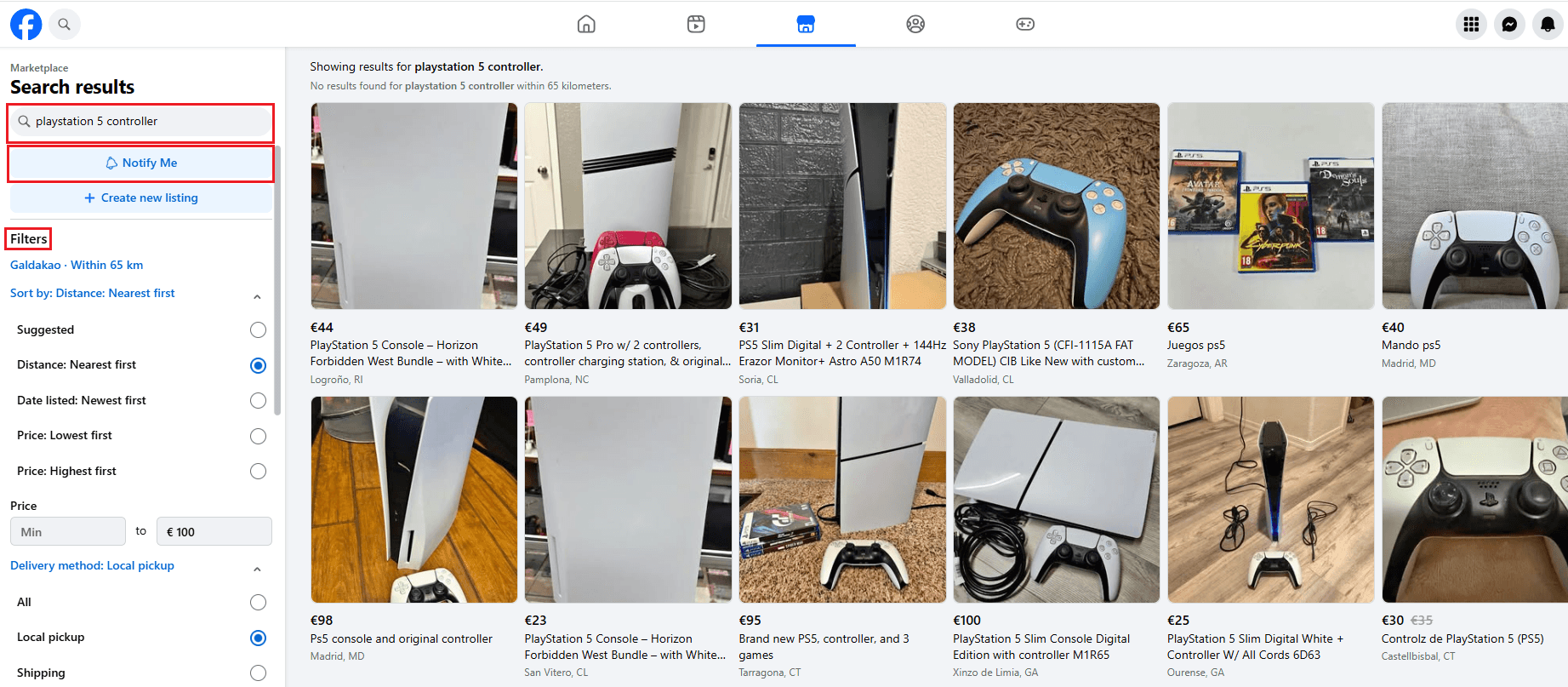
Step 2: Enable Search Alerts
After saving your search, click on the button “Notify Me”.
Make sure notifications are enabled for that specific search and turn on instant alerts so Facebook can notify you immediately when a matching listing appears. Without this setting enabled, you may not receive real-time Marketplace updates.
Step 3: Enable Device Notifications
You should also verify that notifications are enabled both inside the Facebook app and in your phone’s system settings. In some cases, Marketplace alerts are blocked by disabled push notifications, restricted background activity, or missing app permissions. Make sure Facebook is allowed to send notification banners and refresh in the background.
Step 4: Keep the App Updated
Using an outdated version of Facebook can cause Marketplace features and notifications to stop working properly. Facebook frequently fixes bugs and notification issues through app updates, so installing the latest version can often restore broken alert delivery and improve overall Marketplace performance.
Is Facebook Marketplace Having Technical Issues With Alerts?
Yes, regularly. Facebook Marketplace frequently experiences:
- Delayed search alerts
- Duplicate notifications
- Missing notifications
- Broken saved searches
- Notification delivery outages
These issues are especially noticeable during high-traffic periods.
The core problem is that Marketplace notifications were never designed for ultra-fast real-time monitoring. They work adequately for casual users, but not for people competing for limited inventory.
This becomes a serious issue when searching for underpriced electronics, vehicles, rare collectibles, sneakers, limited inventory items, furniture, and high-demand local deals.
By the time Facebook pushes the alert, hundreds of users may have already messaged the seller.
Tired of Facebook Marketplace alerts arriving too late?
Lotify monitors new Marketplace listings in real time and pings you the second a match appears. 7-day free trial, no card required.
The Real Problem With Facebook Marketplace Alerts
Even after fixing everything, one issue still remains: Facebook alerts are slow.
That is the biggest pain point for serious buyers. You can spend time optimizing notification settings, disabling battery restrictions, reinstalling the app, and troubleshooting every possible issue – but Facebook still may not notify you immediately.
And in competitive marketplaces, speed is everything. The best deals disappear first.
This is why many users started looking for alternatives that monitor Marketplace listings faster and more reliably.
Some people attempt scraping Facebook listings for faster alerts, but this creates major risks. While scraping Facebook listings may seem like a workaround for instant alerts, it poses risks that can outweigh the benefits. Accounts can get flagged, access may become unstable, and maintaining scrapers becomes difficult as Facebook constantly changes Marketplace behavior.
So, what is the best alternative for receiving fast Facebook Marketplace notifications without risking bans, restrictions, or account issues – while still getting alerted about new listings before most other buyers even see them and having a better chance to purchase great deals faster than everyone else?
A Better Alternative — Lotify
This is where the Lotify app changes the experience completely.
Instead of relying on Facebook’s inconsistent notification system, Lotify focuses on fast, intelligent monitoring for new marketplace listings with its Facebook Marketplace Alerts solution.
The bot is built specifically for users who need real-time search alerts without constantly refreshing Facebook Marketplace manually.
Lotify allows users to create advanced alerts for specific products and receive notifications faster when a matching listing appears.
Instead of generic Marketplace notifications, Lotify smart alerts focus on:
- Real-time listing monitoring
- Precise keyword matching
- Faster notification delivery
- Advanced filtering
This helps users react before the majority of buyers even see the listing. For competitive products, that timing difference matters enormously.
Why Lotify Is Better Than Native Facebook Alerts
| Feature | Facebook Marketplace Alerts | Lotify Alerts |
|---|---|---|
| Alert Speed | Notifications often arrive too late, especially for high-demand products and competitive categories. | Designed for faster detection of new marketplace listings, helping users react before listings disappear. |
| Search Precision | Saved searches can behave inconsistently and may miss a matching listing. | More accurate keyword monitoring and smarter search alerts for specific products and filters. |
| Notification Reliability | Alerts may fail because of notification settings, battery optimization, or app-related issues. | More stable monitoring system designed specifically for real-time listing tracking. |
| Relevance of Alerts | Facebook frequently sends unrelated recommendations or irrelevant notifications. | Focuses on relevant new marketplace listings instead of random suggestions. |
| Background Monitoring | Native alerts depend heavily on Facebook app behavior and operating system restrictions. | Built to improve how alerts are tracked and delivered across devices. |
| iPhone and Android Performance | Notification delivery can vary depending on device settings, battery saver modes, and operating system limitations. | Provides a more consistent experience across both iPhone and Android devices. |
| Competitive Advantage | Delayed alerts often cause users to miss the best deals. | Faster notifications increase the chance of contacting sellers before other buyers. |
FAQ
Why am I not getting notifications from FB Marketplace?
Facebook Marketplace notifications may stop working because of disabled notification settings, battery optimization, broken saved searches, or app bugs. On both iPhone and Android, system settings can block search alerts and delay notifications for new marketplace listings. In many cases, users miss a matching listing simply because Facebook alerts arrive too late.
Why am I not getting Facebook notifications even though they are turned on?
Even if Facebook notifications are enabled, your device may still block them. Features like “Do Not Disturb”, “Low Power Mode”, battery optimization, or disabled background activity can prevent Marketplace alerts from appearing properly. Updating the app or logging out and back in may also help fix the issue and refresh notification delivery.
How to get notifications of items on Facebook Marketplace?
To receive alerts for new marketplace listings, create a saved search on Facebook Marketplace and enable search alerts in your notification settings. You should also allow background activity and disable battery optimization on your iPhone or Android device for faster notifications. Proper notification settings improve your chances of catching the best deals before other buyers.

2026-05-14
