eBay Advanced Search Guide
The link is a grey word next to the Search button, easy to miss and easy to lose. This is where it lives, what every field on the form does, and the eight things it can do that the filters on a results page can’t.

On any eBay page in a desktop browser, look to the right of the blue Search button. The word Advanced sits there in small grey text.
If you can’t see it, go straight to the page instead: https://www.ebay.com/sch/ebayadvsearch
Bookmark that. The link is the first thing to disappear when eBay changes the header, and it has been reported missing at some browser zoom levels while the page itself works perfectly.
What it’s capable of
The sidebar on the left of the page switches between five separate forms.
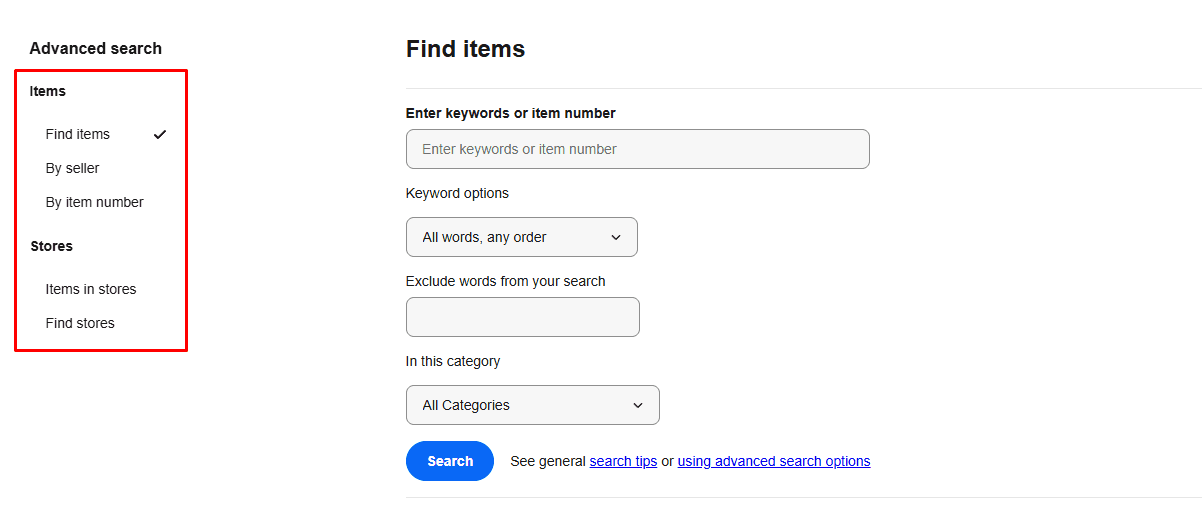
| Tab | What it’s for |
|---|---|
| Find items | The main form, and everything below describes this one |
| By seller | Everything one seller has listed, by username |
| By item number | Jump to a listing when you have its number |
| Items in stores | Search inside eBay Stores only |
| Find stores | Find a store rather than an item |
Keywords and how they match
Under the keyword box there’s a dropdown that nothing on a normal results page offers. Four options.
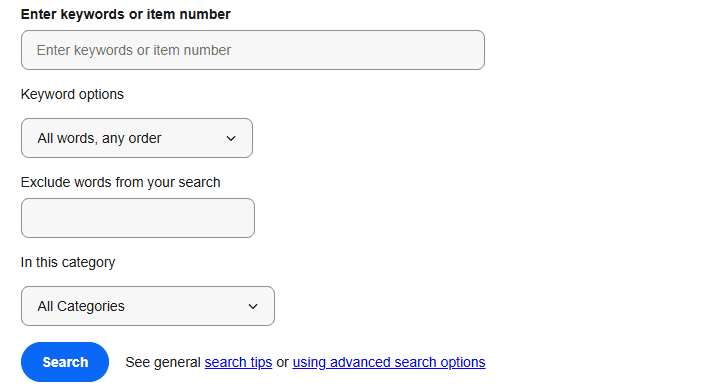
- All words, any order. The default, and the same as typing into the normal search bar.
- Any words, any order. Widens the search. A listing matching one of your words qualifies.
- Exact words, exact order. The same thing quotation marks do in the search bar.
- Exact words, any order. Every word must appear, order doesn’t matter.
Beside it sits Exclude words from your search, which does what a minus sign does in the search bar. We measured what the minus sign actually removes and what it leaves on the page in which eBay search operators still work, and the answer is less than the word “exclude” suggests.
Search including
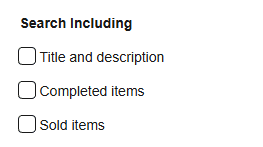
Three checkboxes, and two of them are the reason most resellers open this page at all.
- Title and description. Searches listing bodies as well as titles. Be careful combining this with an exclusion, because the two work against each other.
- Completed items. Listings that have ended, sold or not.
- Sold items. Only the ones that sold, with the price someone actually paid.
Sold items is the single most useful checkbox on the page. Asking prices tell you what sellers hope for. Sold prices tell you what the thing is worth.
Price, format and condition
A minimum and maximum price. Buying format as Accepts offers, Auction, Buy It Now or Classified ads. Condition as New, Used or Not specified.
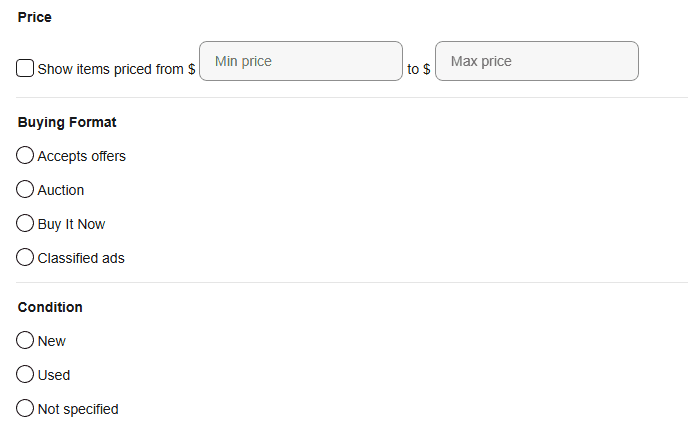
All of these exist in the filter panel on a results page too, so they’re not a reason to come here.
Show results
Free returns, Returns accepted, Authorized seller, Deals and savings, Sale items, Listed as lots, Benefits charity, Authenticity Guarantee.
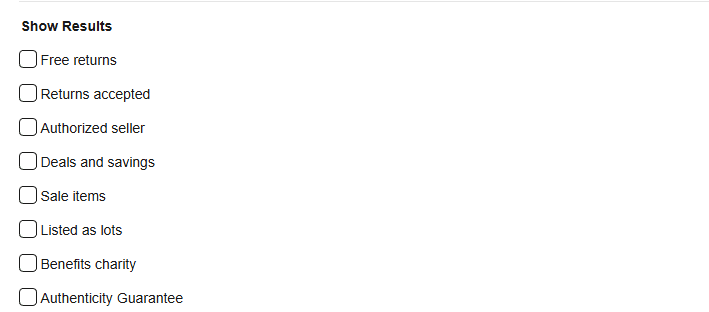
Listed as lots is worth knowing about. A lot is a group sold as one item, and sellers price the group rather than each piece. It’s where mixed boxes of parts and collections end up.
Timing and bids
This block has no equivalent in the normal filters.
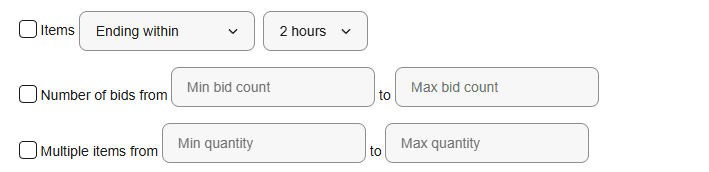
- Ending within a window from one hour up to seven days.
- Ending in more than that window, for the opposite.
- Started within, which finds recently listed items.
- Number of bids from and to. Set the maximum to zero and you get auctions nobody has bid on.
- Multiple items from and to, filtering by quantity available.
Ending within a few hours combined with a maximum of zero bids is the classic auction hunt, and you can’t assemble it on a results page.
Item location
Here’s the one that genuinely justifies the page.
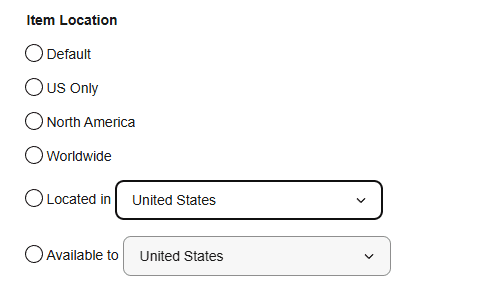
The results page gives you four choices on ebay.com: Default, US Only, North America, Worldwide. The form gives you those plus a distance radius in miles from a postcode, plus two country dropdowns listing every country individually.
- Located in. Pick one country and see only items sitting there. Japan for cameras, Germany for tools, wherever the thing you collect comes from.
- Available to. Pick your own country and see only items that can actually be shipped to you, which is a different question and usually the more useful one.
Default isn’t worldwide, by the way. We ran all four location settings and counted the results in how to search eBay worldwide. Three of the four returned almost the same listings.
Sellers
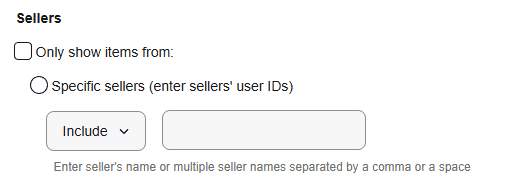
One field, two modes. Include or Exclude, and it takes several usernames separated by commas or spaces.
Exclude is the mode people forget. If one seller floods a category you watch with the same overpriced listing, put their username in and never see them again.
Sorting and layout
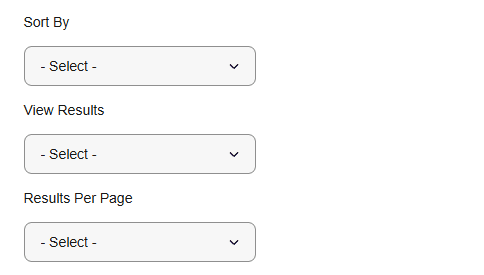
Sort by ending soonest, newly listed, price low to high, price high to low, distance, or best match. Choose list or gallery view. Show 60, 120 or 240 results per page.
Two hundred and forty per page is worth setting if you scan a lot. It turns four pages into one.
The eight options you can’t get anywhere else
Most of the form duplicates the panel on the left of a results page. These eight don’t.
- The keyword matching dropdown with its four modes
- Exclude words as a field rather than a minus sign
- Sold items with real prices
- Completed items, including the ones that didn’t sell
- Number of bids, including a maximum of zero
- Ending within, ending in more than, and started within
- Located in and Available to, by individual country
- Excluding named sellers
If your search doesn’t need one of those eight, use the search bar and the filters. You’ll get there faster.
The app doesn’t have this page
There’s no Advanced link in the eBay app. The app has a Filter button on the results screen, and that panel covers price, condition, format and location but not the eight items above.
Two ways round it.
- Open ebay.com/sch/ebayadvsearch in your phone’s browser. The page works on a small screen, and it’s the same form.
- Or build the search once on a desktop, then save it. Saved searches keep every option you set, and they appear in the app afterwards. This is the better route if it’s a search you’ll run again.
What this page can’t do
Every field on the form describes listings that already exist. You can narrow to a single country, a single seller and auctions ending in two hours with no bids, and you’ll still only see what was posted before you pressed Search. The listings worth having on eBay are taken quickly. Running your carefully built search every twenty minutes is the obvious response, and it’s also how people end up staring at a bot-detection screen.
Lotify watches eBay listings as they publish and sends each match to Telegram within seconds, with the photo, the price and the link. You set the keywords, the marketplace, the price range and the words to exclude, then close the tab.
Free Trial Available
Lotify offers a 7-day free trial with no registration or credit card required. Test it out and see how many deals you’ve been missing.
If you’re checking sold prices before buying something, Advanced Search does that for free and does it well. If you’re hunting the same item every day, the form isn’t the part that’s slowing you down.
FAQ
Where is Advanced Search on eBay?
On any eBay page in a desktop browser, look to the right of the blue Search button. The word Advanced sits there in small grey text.
If you can’t see it, go straight to https://www.ebay.com/sch/ebayadvsearch and bookmark it. The link is the first thing to disappear when eBay changes the header, and it has been reported missing at some browser zoom levels while the page itself works perfectly.
Is there Advanced Search in the eBay app?
No. The app has a Filter button on the results screen, which covers price, condition, format and location, but not the options that make Advanced Search worth using.
Open ebay.com/sch/ebayadvsearch in your phone’s browser instead — it’s the same form and it works on a small screen. Or build the search once on a desktop and save it: saved searches keep every option you set and appear in the app afterwards.
How do I search sold items on eBay?
Open Advanced Search and tick Sold items under Search including. You’ll see only listings that sold, with the price someone actually paid. Completed items is the wider option: every listing that ended, sold or not.
Sold items is the single most useful checkbox on the page. Asking prices tell you what sellers hope for. Sold prices tell you what the thing is worth.
How do I find eBay auctions with no bids?
In Advanced Search, tick Number of bids and set the maximum to zero. Combine it with Ending within a few hours and you have the classic auction hunt: listings about to close that nobody has bid on. You can’t assemble that combination from the filters on a results page.
How do I exclude a seller from eBay search results?
Under Sellers in Advanced Search, tick Only show items from, choose Specific sellers, switch the dropdown from Include to Exclude and type the username. It accepts several usernames separated by commas or spaces. If one seller floods a category you watch with the same overpriced listing, this is how you stop seeing them.
What can eBay Advanced Search do that normal filters can’t?
Eight things: the keyword matching dropdown with its four modes, excluding words as a field, sold items with real prices, completed items including unsold ones, number of bids including a maximum of zero, ending within / ending in more than / started within, Located in and Available to by individual country, and excluding named sellers.
If your search doesn’t need one of those, the search bar and the results-page filters will get you there faster.

2026-09-14
